









How to Extract Tables, Charts & Invoice Data from Screenshots and Scanned PDFs into Clean Excel/CSV with AI
How to Extract Tables, Charts & Invoice Data from Screenshots and Scanned PDFs into Clean Excel/CSV with AI
Short answer: To get spreadsheet-ready CSV or Excel data from screenshots, scanned PDFs, invoices, or presentation charts without silent typos, use a two-step multimodal workflow: first upload the image or PDF to Gemini 4 Neon (or Gemini 4 Carbon for dense multi-column scans) with a strict schema prompt that forces [UNCLEAR] flags instead of guessing; then run a 10-second verification pass in GPT-6.2 Sol or Claude Sonnet 5.5 to check row/column sums, normalize currencies and signs, and output a clean CSV or Excel formula block.
 Modern dark workspace displaying a glowing financial chart and scanned invoice screenshot transforming cleanly into a structured glowing spreadsheet grid
Traditional OCR tools break the moment a real-world document gets slightly messy: merged header cells, rotated scans, negative numbers written in parentheses (1,420), footnotes glued to digits (42.8*), or bar charts where values are only implied by axis gridlines. Re-typing those tables by hand wastes hours—and blindly trusting a one-shot AI extraction risks slipping a wrong decimal into a client model.
Modern multimodal models solve both problems if you separate visual extraction from arithmetic verification.
Why Naive "Convert This Image to CSV" Prompts Break
If you upload a screenshot of a financial table or invoice and just type "Convert this to CSV," four subtle errors happen constantly:
- Column shift on merged headers: Sub-headers like
Q1 | Q2 | Q3nested under2025vs.2026get flattened into misaligned columns. - Parentheses and footnote markers pollute numbers: Excel treats
(1,250)or84.2*as text strings instead of numeric values, silently breakingSUM()formulas. - Confident guessing on blurry pixels: When a screenshot is low-resolution, a single-pass prompt guesses
8instead of6rather than telling you it could not read the digit. - Silent omission of rows: On 40-row tables, models occasionally skip a middle row unless you force a row-count and subtotal reconciliation check.
Best Multimodal Models for Visual Data Extraction
On AIWITH.CHAT, you can upload images, screenshots, PDFs, Word docs, and Excel files directly and route each step to the model built for it:
| Task Type | Recommended Model | Why It Performs Best |
|---|---|---|
| Dense multi-column tables & scanned PDFs | Gemini 4 Neon / Gemini 4 Carbon | Native multimodal vision preserves complex column hierarchies and reads dense small-font scans cleanly |
| Invoices, receipts & line-item extraction | Gemini 4 Neon + GPT-6.2 Sol | Gemini extracts line items fast; GPT-6.2 Sol (thinking mode) verifies subtotal + tax = total |
| Charts, graphs & slide screenshots | Gemini 4 Carbon or GPT-6.2 Astra | Strongest visual precision for reading axis scales, legends, and stacked bar segments |
| CSV cleaning, Excel formulas & Python scripts | Claude Sonnet 5.5 | Cleanest formatting, zero extra chatter, great at generating ready-to-run pandas/Excel cleanup rules |
Copy-Paste Workflows for the 3 Most Common Scenarios
Scenario 1: Financial Table or Scanned PDF → Verified CSV
Upload your screenshot or PDF to Gemini 4 Neon (or Gemini 4 Carbon for tiny text) and use this prompt:
Extract the table from this image/PDF into valid RFC 4180 CSV inside a single code block.

Rules:
1. Flatten multi-level headers clearly (e.g., "2025_Q3", "2026_Q3").
2. Convert accounting negatives like (1,240) into standard signed numbers like -1240.
3. Strip thousand separators and footnote symbols (*, †, [1]) from numeric cells, and move any footnote meaning into a separate "Notes" section below the CSV.
4. Preserve the exact row order, including Subtotal and Total rows.
5. If ANY digit or label is blurry or ambiguous, write [UNCLEAR: best_guess] instead of silently guessing.

After the CSV block, report:
- Total data rows extracted
- Units printed on the table (e.g., USD in millions, %)
Step 2 (10-second math check): Paste that CSV into GPT-6.2 Sol (which runs with thinking mode enabled) with:
Audit this extracted CSV for arithmetic and structural integrity:
1. Verify every Subtotal and Total row against the sum of its constituent rows. Flag any discrepancy > 0.1.
2. Check for column count mismatches across all rows.
3. Flag any [UNCLEAR] tags or suspicious 10x/100x magnitude jumps.

If all checks pass, output the final clean CSV ready to save as .csv.
Because GPT-6.2 Sol checks the math independently of the visual read, a single misread digit (3 vs 8) immediately fails the column subtotal check and gets caught before it ever touches Excel.
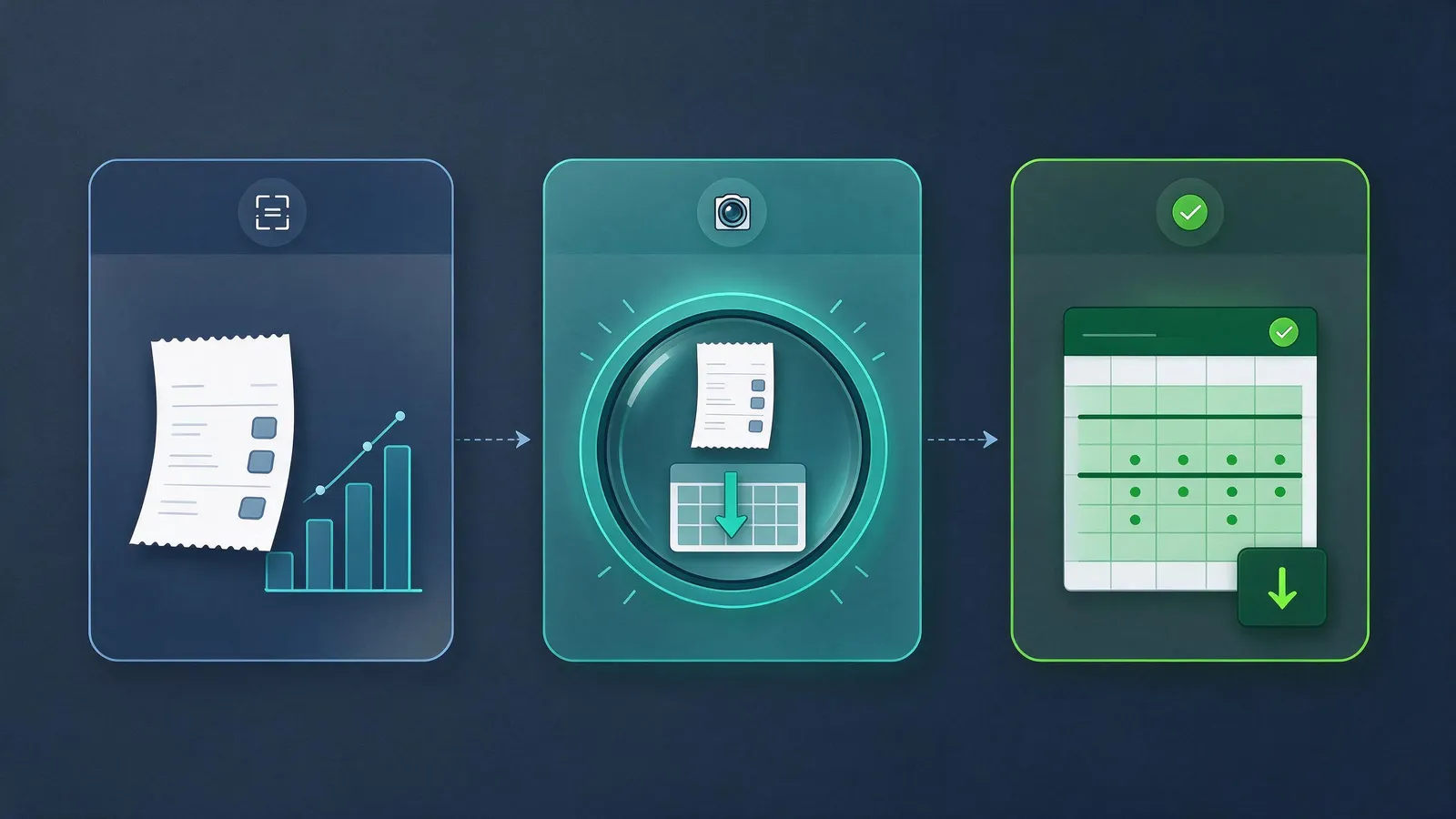 Visual comparison of raw messy screenshot input flowing through multimodal extraction and automated subtotal verification into clean spreadsheet output
Scenario 2: Presentation Charts & Graphs → Structured Data Table
When a competitor deck or industry report only gives you a screenshot of a bar chart or line graph:
Read the attached chart and reconstruct the underlying dataset as a Markdown table AND a CSV block.

Rules:
1. State the exact chart title, X-axis label, Y-axis label, and Y-axis scale/units first.
2. If exact data labels are printed on the bars/points, mark the "Precision" column as "Exact".
3. If values must be estimated from the Y-axis gridlines, mark "Precision" as "Estimated" and state your estimated margin of error (e.g., +/- 2 units).
4. Include every series shown in the legend. Do not invent categories that are not visible.
Adding the Exact vs. Estimated column keeps you honest when citing chart data in downstream reports—you immediately know which numbers are printed facts and which are visual reads.
Scenario 3: Batch Invoices & Receipts → Accounting-Ready Ledger
For freelancers, small teams, or ops managers reconciling 10–30 vendor PDFs or receipt screenshots per month:
Extract structured accounting fields from the attached invoice/receipt image(s) into a single CSV with these exact columns:
Vendor,Invoice_Number,Invoice_Date_YYYY_MM_DD,Currency,Subtotal,Tax,Total,Payment_Status,Line_Items_Summary,Check_Math

Rules:
- Format dates strictly as YYYY-MM-DD.
- In Check_Math, compute (Subtotal + Tax - Total). Write "OK" if it equals 0, otherwise write "MISMATCH: <diff>".
- Write [MISSING] for any field not present on the document.
If you need to merge the output with an existing .xlsx expense template, hand the verified CSV to Claude Sonnet 5.5 and ask it to generate either an Excel XLOOKUP/SUMIFS formula or a 20-line Python pandas merge script.
4 Quick Habits That Double Extraction Accuracy
- Crop out surrounding clutter: A tight screenshot of just the table or chart gives the vision encoder higher effective pixel density per character than a full-screen 4K desktop capture.
- Never mix extraction and commentary in one output: Ask for the raw CSV in a code block first, and put notes/warnings below it so you can copy-paste straight into Excel or Google Sheets.
- Keep totals in the table during extraction: Even if you plan to delete the
Totalrow later in Excel, extracting it first gives your Step 2 verification model a built-in checksum. - Use
[UNCLEAR]as an escape hatch: Models hallucinate digits mainly when they feel forced to produce a clean-looking cell. Explicitly giving them permission to flag uncertainty turns silent errors into 2-second manual spot checks.
Run Your Full Vision-to-Spreadsheet Stack in One Account
Paying $20/month each for Gemini, ChatGPT, and Claude just to combine strong visual OCR with thinking-mode math checks adds up to $60/month. On AIWITH.CHAT, one workspace gives you Gemini 4 Neon / Carbon, GPT-6.2 Sol / Astra, Claude Sonnet 5.5 / Opus 5.5, Kimi K3.1 Pro, and DeepSeek V4.1 Flash—with built-in image, PDF, Word, and Excel upload—starting free, or from $9.9/month (Standard, 3.2M credits) and $19.9/month (Premium, 7.2M credits) via Stripe (Visa, Mastercard, Alipay, and WeChat Pay).
Upload your next table screenshot or scanned PDF to Gemini 4 Neon and cross-check the math in GPT-6.2 Sol or Claude Sonnet 5.5.